
Troubleshoot a conversion 
Read the conversion messages 
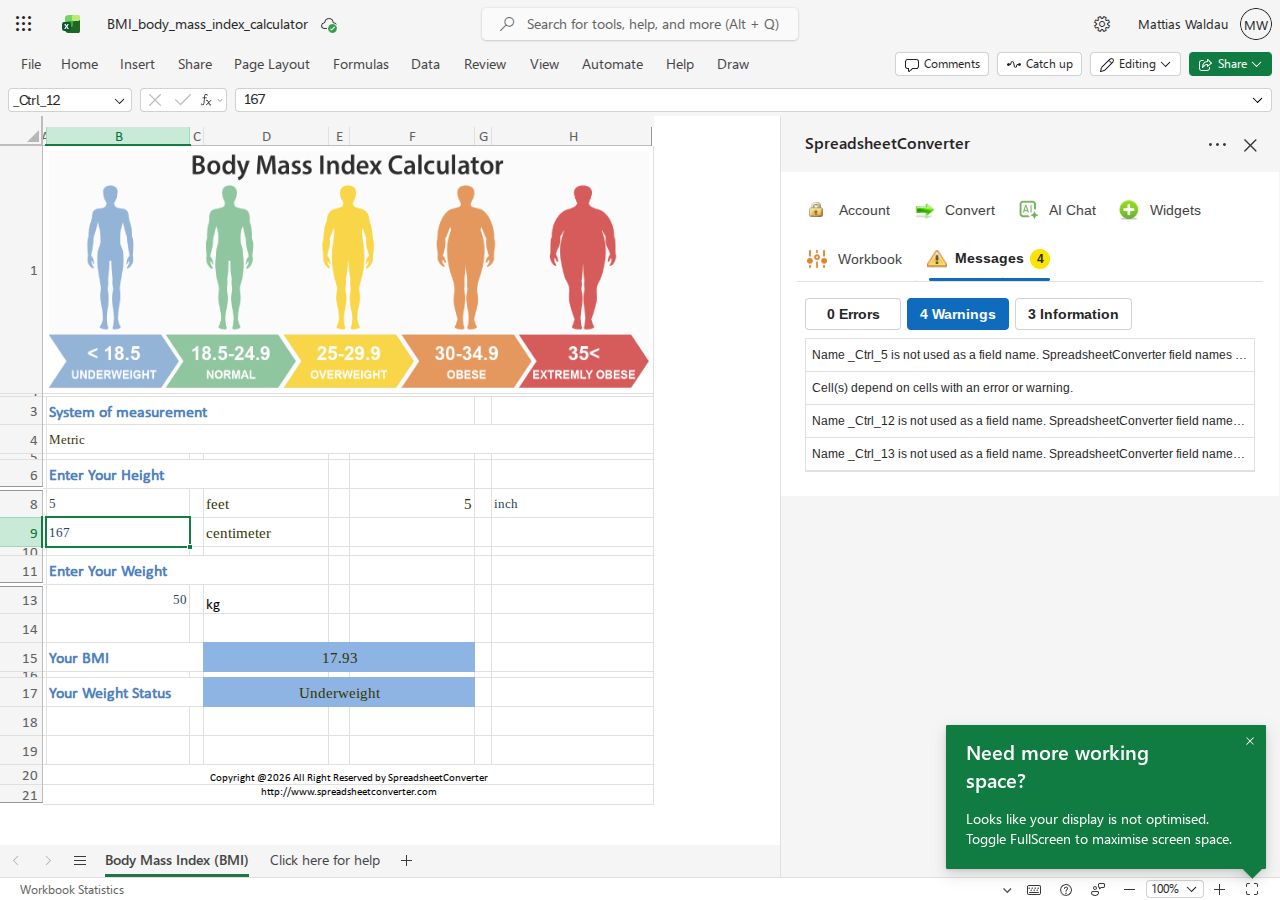
The Messages tab summarizes issues encountered during conversion. Use Errors, Warnings and Information to choose a category, then select a message to read its full description.
Use Copy to clipboard to copy the selected message when asking for help. A message can include a Help online link with more information. On the conversion result, View messages takes you to the Messages tab.
Check input cells 
If the workbook has no input cells, a end user cannot change its values. Choose the appropriate input mode, convert again and check the preview. See choosing input cells.
Compare the rendering engines 
Modern is the default HTML rendering engine. If a workbook has a problem on Modern, open Workbook → Flavor, check Classic rendering engine and convert again. This is a temporary fallback; the choice applies to this browser, not to your workbook.
The rendering-engine choice is available for HTML output. Node.js uses Modern; Smartphone and legacy output flavors use Classic. If the setting is disabled, the hint explains which engine that flavor requires.
Installation and consent 
For problems adding SpreadsheetConverter to Excel, use the v12 installation instructions. The older archive describes earlier installation methods and must not be used as the v12 install flow.
Report the problem 
Include the copied conversion message, the rendering engine, the output flavor and the steps needed to reproduce the problem. For a Server publishing problem, include the refusal text or the explanation offered by the publishing result. See Server publishing.