
Install SpreadsheetConverter for Excel 
SpreadsheetConverter installs straight from Excel's built-in Add-ins store — no downloads, no manifest files. The whole process takes about a minute.
Use Excel on your desktop for the install. Don't start from Excel for the web: the Microsoft permission dialog in step 6 only appears in desktop Excel, so a web install can't be completed. (Once installed, you can use the add-in on the web too — see the note after the steps.)
Install from Excel 
-
Start Excel on your desktop (Windows or Mac) and open any workbook.
-
On the Home ribbon, click Add-ins.
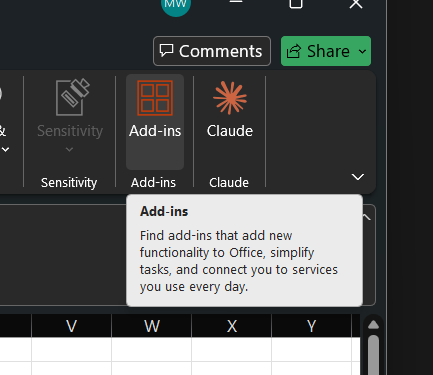
-
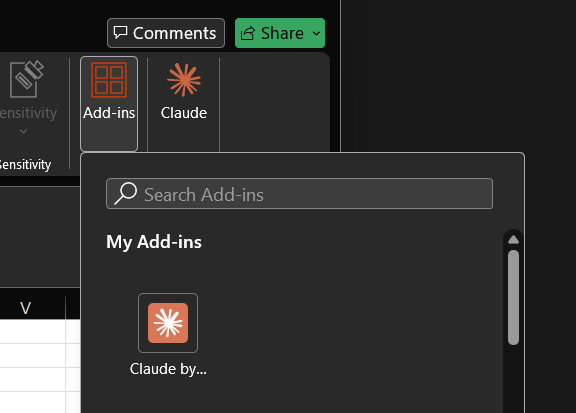
The Add-ins dialog opens, with a search box at the top.
-
In the search box, type
spreadsheetconverter— one word, no spaces. Lower-case is fine. -
Find SpreadsheetConverter in the results and click Add.

-
A Microsoft permission dialog appears — “Let this app access your info?” — showing the publisher Framtidsforum I&M AB and the permission View your basic profile (your email address). Click Accept.
-
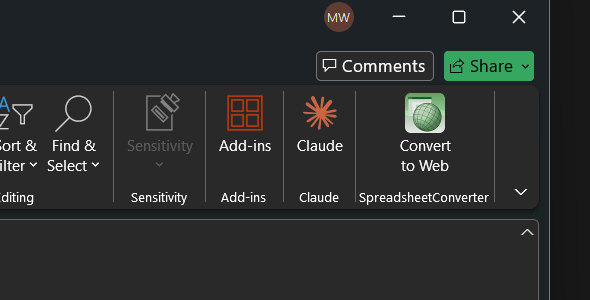
After up to ~30 seconds, a new Convert to Web button appears on the ribbon, in a SpreadsheetConverter group. If you don't see it, look under the … (More) overflow at the right end of the ribbon.
-
Click Convert to Web to open the SpreadsheetConverter task pane.
Already installed it? Use it on the web too. Once SpreadsheetConverter is installed and you've accepted the consent for your account in desktop Excel (steps 1–6), you can also use it from Excel for the web at excel.office.com. The add-in is tied to your account, so it's available there too — you only need the desktop install once; the web consent dialog that blocks a first-time install no longer stands in the way afterwards.
What the consent dialog means 
SpreadsheetConverter uses Microsoft Entra (Azure AD) for sign-in. The consent dialog in step 6 grants exactly two things:
- Sign you in. The task pane shows your name from your work, school, or personal Microsoft account.
- View your basic profile. Used only to identify your account and your trial-or-paid entitlement.
SpreadsheetConverter does not read your mailbox, OneDrive files, or any other data. The consent screen is the standard Microsoft prompt — no personally identifiable data leaves your device beyond what you choose to convert.
If it doesn't work 
If the Add-ins search doesn't surface SpreadsheetConverter, your Microsoft 365 tenant may restrict add-in installation. Ask your IT administrator, or try a personal Microsoft account.
If anything fails — even partially — please contact support. The beta program depends on hearing about every install hiccup; the form takes 30 seconds and asks for the bare minimum to reproduce the issue.