
Data tables 
Use a data table to separate a rectangle of source data from the workbook’s calculations. The rows can stay inside the generated page or live on SpreadsheetConverter Server. This is different from an ordinary input cell or a form submission destination.
Mark a range and configure its table 
Select the data range in Excel and use the Data table widget. The widget’s Cell: line identifies its range. The converter follows the table’s current size; only its top-left cell is remembered. Check the range after adding or removing data.
Set Header row (0 = no headings) to the heading row’s position within the range, starting at 1. Use 0 when the range has no headings.
Names, keys and row order 
Name on the Server identifies the table on the Server. It is separate from the widget’s own Name. For an older table with an empty server name, the converter uses its existing widget identifier; changing names can change which server table is addressed.
Enter the heading that identifies a row in Key column. Enter a heading in Order by when you need a particular order, or leave it empty for no particular order. Use Descending to reverse the order and Row order matters when the calculation depends on that order.
The current controls accept heading text; they do not provide a dropdown of headings. Correct any inline name or heading validation error before converting.
Choose where the rows live 
- Embedded — the rows stay in the page (no Server needed): the data travels with the generated page. Do not embed data that end users must not receive.
- Stored — the page reads the rows, and does not change them: use the Server-backed publishing workflow for read-only rows.
- Maintained — the page can change the rows: use the Server-backed workflow when the page must update the table.
Stored and Maintained require the Server context. Downloading or hosting ordinary HTML does not establish a Server connection or authorise access to a table. Verify the actual destination, access and row behaviour before publishing.
Propose separate tables when publishing 
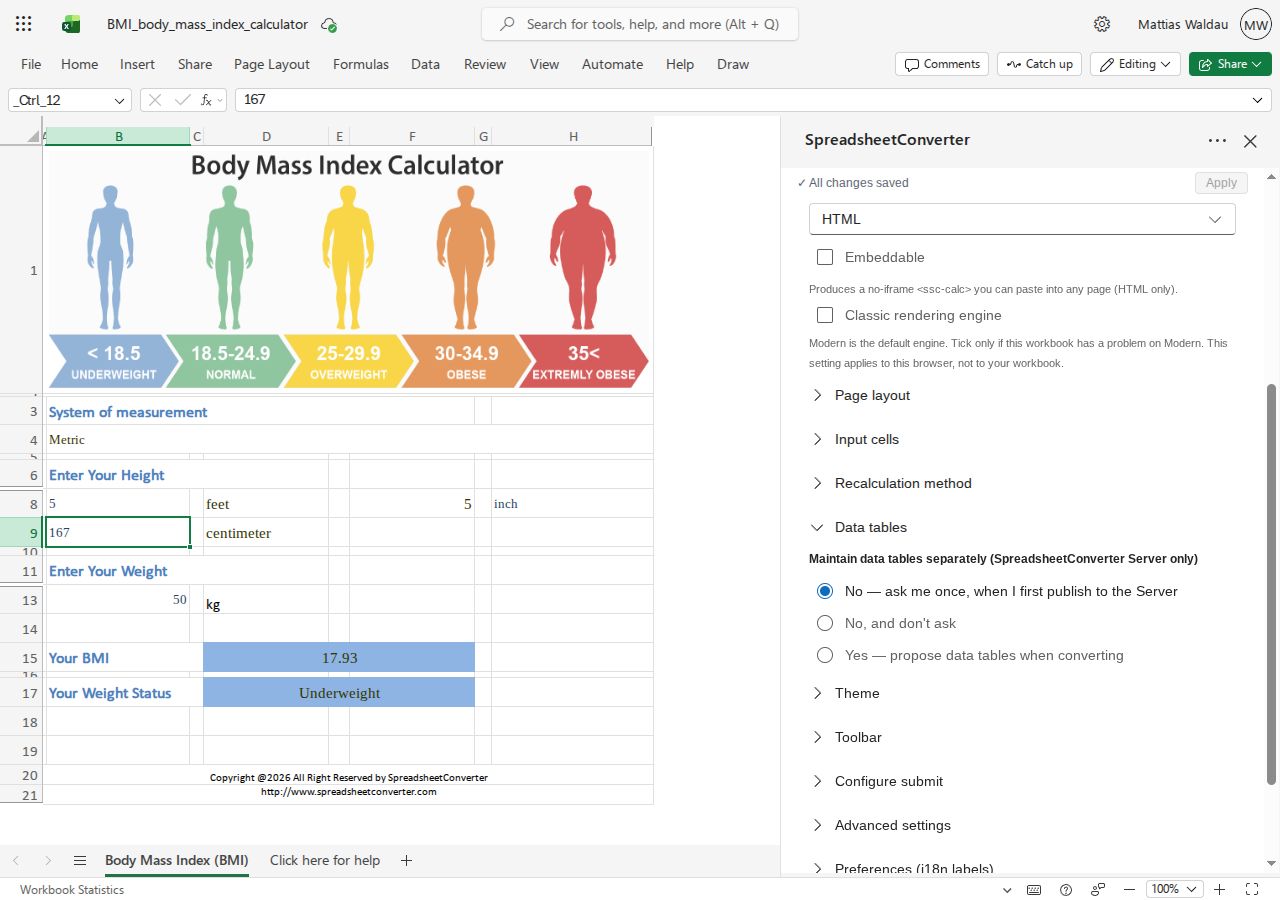
In the Workbook settings, Maintain data tables separately (Server only) offers three choices:
- No — ask me once, when I first publish to the Server.
- No, and don't ask.
- Yes — propose data tables when converting.
When the first Server publish offers tables, choose Yes, maintain separately to review the proposal or No to decline. Review the proposed ranges and settings before applying them. The workbook setting lets you change the choice later.
What belongs in a data table 
A data table holds values, not formula cells. Keep calculations outside the marked data range. Data-table ranges must not overlap, and the marked range must not contain another widget. The converter also checks headings and a configured maximum number of data rows.
If a mark is refused, read the Messages tab and correct the specific range, heading or content problem. A preview alone does not prove that the data-table mark was applied.
Check the converted result 
Compare embedded rows with the original data. For a Server-backed table, test that the intended rows are read and, for Maintained mode, that authorised changes are saved. Check keys, ordering and calculations that depend on the rows. Test with public sample data before using production records.