
Format your calculator 
Start with the Excel workbook 
Format the cells, number formats, borders, colors and merged cells in Excel before converting. Preview the result after a change: the web page is a conversion of the workbook, not a separate Excel window.
Keep labels close to their input cells and allow enough room for the values your end users will enter. Check long labels, large numbers and dates, as well as the workbook’s initial values.
Set the page theme 
In the Workbook tab, open Theme. Background color accepts a hexadecimal color, such as #FFCC00. Border around text fields controls the input-field border style.
The pane also displays Background image and Applied theme path. Do not rely on these fields for ordinary hosted conversion: background-image rendering is not verified, and a local stylesheet path does not upload a stylesheet. Custom theme files require a separately configured conversion workflow. Excel cell formatting and page theme settings affect different parts of the page.
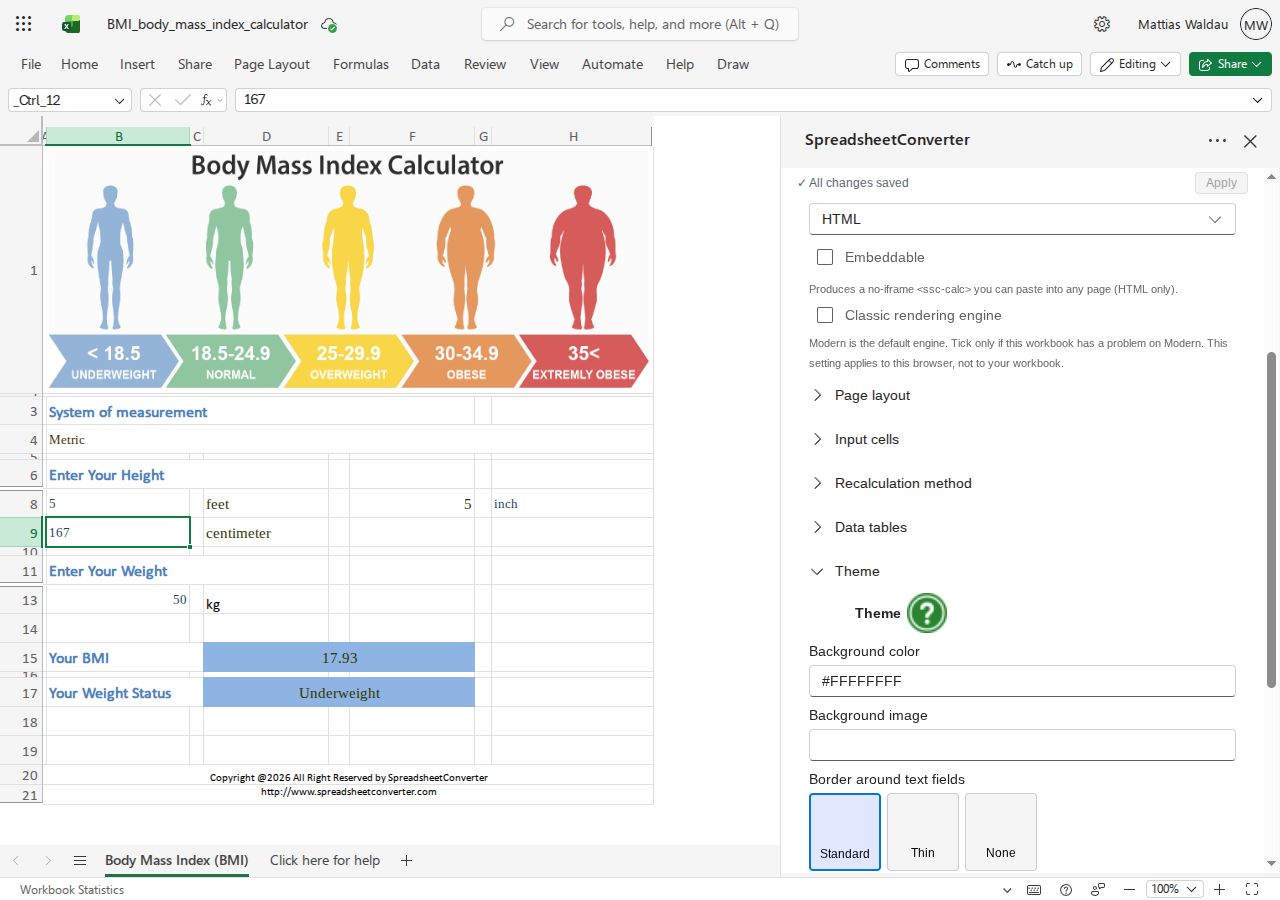
Check the finished page 
After applying settings, convert again and open the preview. Check the page at a narrow width as well as on a desktop screen. See responsive blocks and testing small screens.