
Arrange pages and responsive blocks 
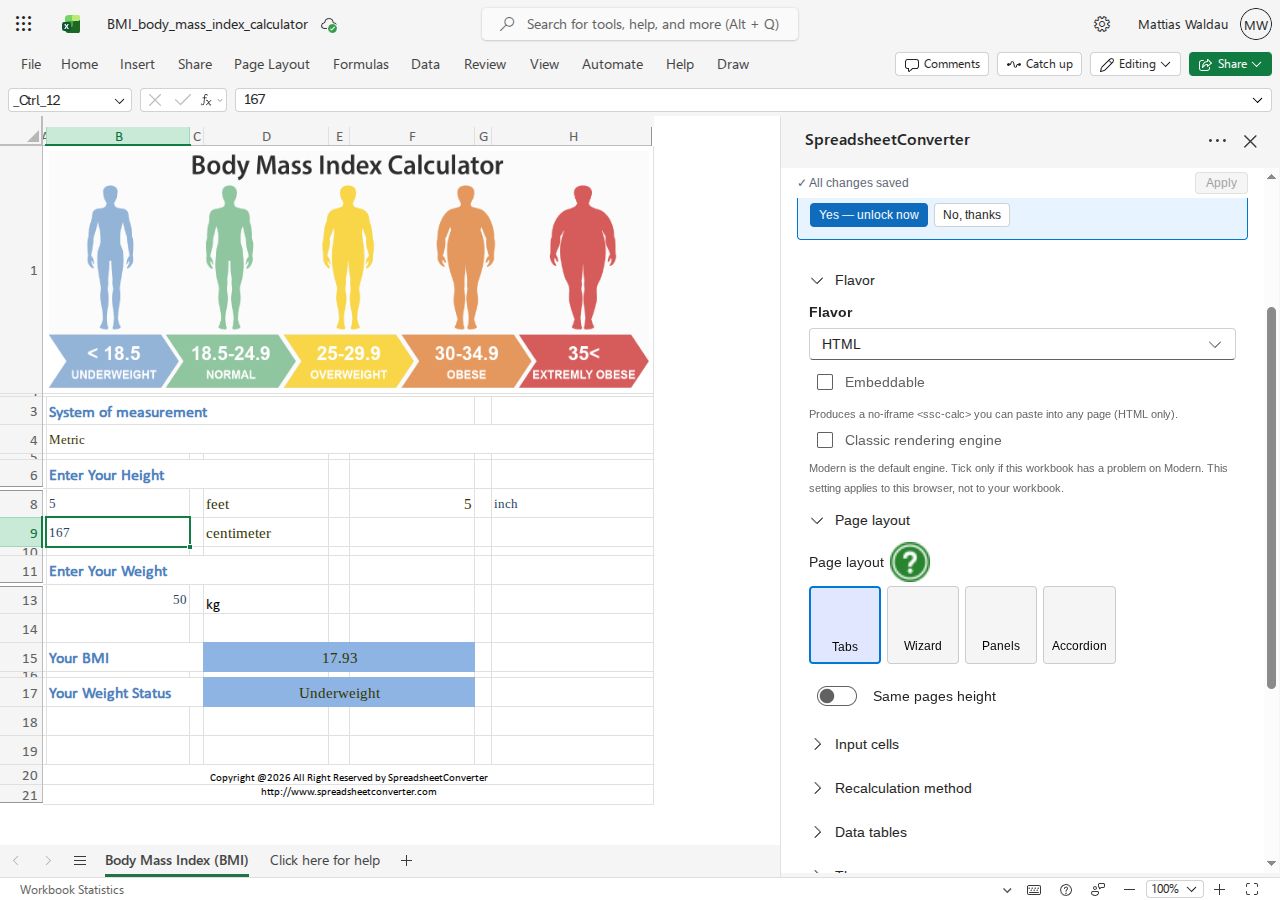
Choose a page layout 
In the Workbook tab, use Page layout to choose Tabs, Wizard, Panels or Accordion. Choose a layout that makes it clear where end users should enter information and where they will find the result.
Convert and test the chosen layout. The available presentation and navigation depend on the output flavor; a layout option in the workbook does not prove identical output in every destination.
Create a responsive block 
Select a cell in the area you want to arrange and add a ResponsiveBlock widget from the Widgets tab. Give the block a name and choose the range it covers. Use the range picker to select the cells, then choose Use this range.
Set Small breakpoint columns, Medium breakpoint columns and Large breakpoint columns to control the block’s width at each breakpoint. These fields accept values from 1 to 12. Keep the complete range inside the intended worksheet and include its labels and input cells.
Edit or remove a block 
Select the block’s widget cell to reopen its settings. Change its range or column widths and use Apply. To remove the widget, use Delete widget and confirm. Convert again after changing the block definition.
Test each width 
Check that labels stay with their fields and that the reading order remains useful when blocks wrap. Test phone, tablet and desktop widths. Avoid assuming that a wide Excel sheet will automatically be pleasant to use on a phone.