
This page describes our former integration with Adobe Flash. Unfortunately, Flash has become extremely insecure and is now blocked in many environments. After we discontinued our Flash flavor, part of the information on this web page became obsolete.
We suggest you make use of the Publish to Cloud feature that uses web servers hosted by us. It is just as convenient, and makes it much easier to test new calculators before they go live.
We originally developed the Flash flavor to make it less complicated to use live calculators and smart forms with blogging tools and content management systems. With Publish to Cloud, it will be easier for you to use the HTML flavor instead.
The easiest way to import an Excel calculator, live chart or smart form into a Drupal blog or website is to use SpreadsheetConverter Flash (Standard or Professional Edition). This tutorial will show you how to publish live Excel spreadsheets and charts in Drupal as interactive Flash files.
Adding a live calculator or chart to your website adds value to your visitors and makes your website more interactive. SpreadsheetConverter converts Excel spreadsheets, charts and tables to web-ready Flash files, that can easily be imported into your Drupal blog or website.
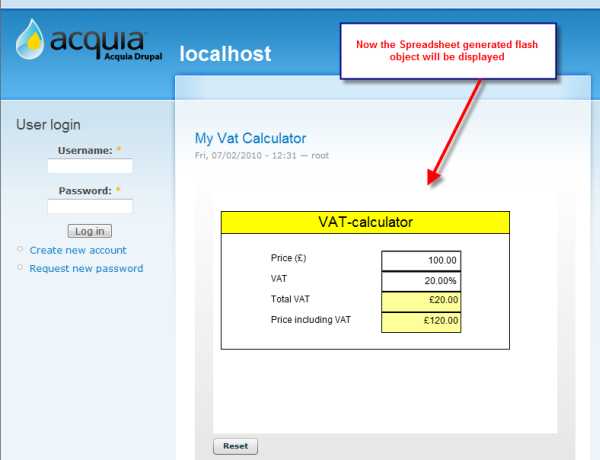
Most Drupal blogs consist of just text and static images. A simple way to make your blog or website more interesting is to add a live chart, calculator or web form to it. Help your visitors solve their problems or visualize their situation!
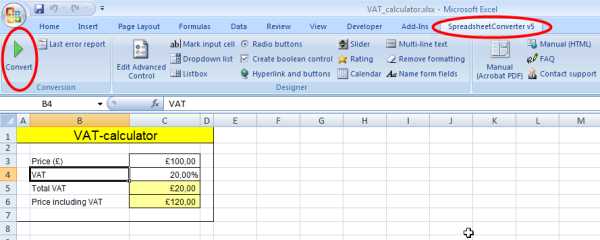
To create this tutorial, we took a simple calculator for UK sales tax (value-added tax, VAT) and published it in a Drupal website. To be able to embed the Excel spreadsheet in a web page, we first converted it to Flash using SpreadsheetConverter Flash.
With this clever Excel plugin you can also create advanced tables, import complex charts or open live graphs in Drupal.
Converting the spreadsheet to a Flash file was simple with SpreadsheetConverter Flash. We just opened the calculator in Excel and pressed the Convert button in the SpreadsheetConverter ribbon.
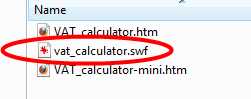
After the conversion, the Flash file and two skeleton HTML files were placed in the designated folder.
To upload the calculator to the Drupal site we first logged in to Drupal. To import Flash files in Drupal, we needed “Flash Node” support (to learn more, read the documentation for Flash Node in Drupal).
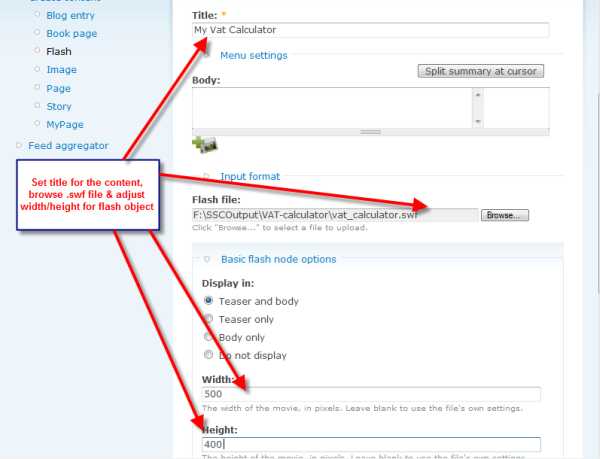
After we had followed these instructions and installed Flash Node support, it appeared in the “Create content” section.
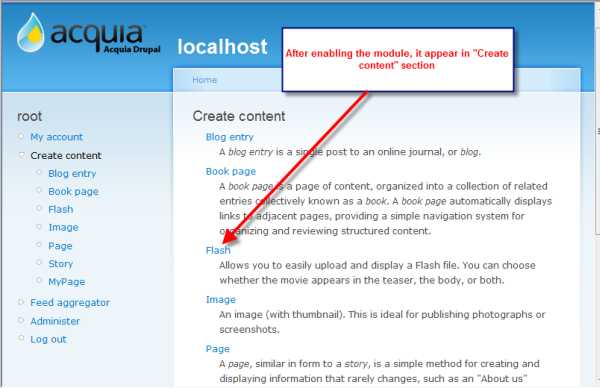
Then we selected the Flash content type. After entering the page title, we pressed “Browse” and located the .swf Flash file that SpreadsheetConverter created. We also set the dimensions for the Flash object to avoid scrolling.
We then saved the new page in Drupal.
We opened the web page in a browser and tested the calculator – it worked great. For every new value we entered into the Price field, it automatically calculated new amounts for Sales tax and Price, just like Excel.
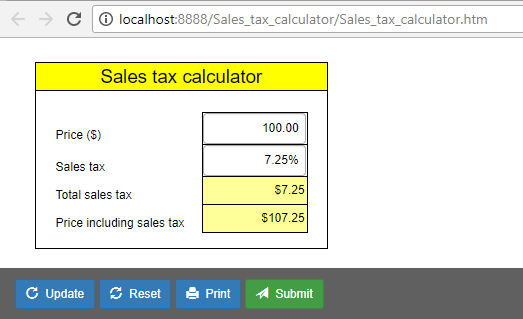
If you don’t want the calculator to include a toolbar, or if you want to select other buttons for the toolbar, you need to adjust the Workbook settings in SpreadsheetConverter. To remove the toolbar, unselect all buttons in the Workbook > Toolbar section.
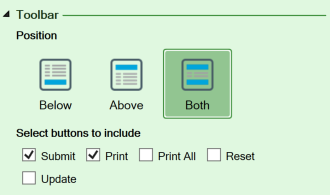
To remove the toolbar, you must also unselect Enable Real-time Sync in Workbook > Web Page Options.

Convert the spreadsheet and upload it again with Publish to Cloud. The toolbar has now been removed.
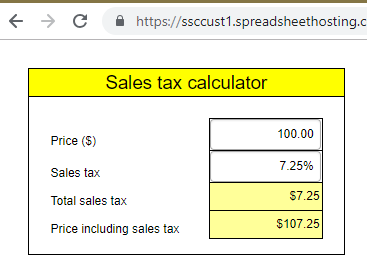
If you want to use an uploaded calculator on more than one page, just insert the embed code once for every page where you want it to appear.
Note that by default, each time you embed a form or calculator it will be a unique, independent copy of it. As an example, you may want to add an order form to any page on your website. Any changes you make to the order form on “page A” will not be visible on “page B”, because the two forms are independent. If you want to connect them to show the same order form on two or more pages you may want to read more about the Real-time Sync feature in the “sign-up form” tutorial.
SpreadsheetConverter can publish almost any Excel calculator, chart, spreadsheet or electronic form on the web. For more examples, visit our Examples library.



Click on Download to install and test this Excel add-in for Windows.
Click on Upload to let us convert a spreadsheet for you for free.
