Join us for a quick tour of how you can use SpreadsheetConverter.

SpreadsheetConverter editions and prices.

Try the program for free in your own PC. Download and install this plug-in for Excel in Windows.

E-mail us your spreadsheet, and we will e-mail you the converted webpage for free. No installation or credit card required.

Visit our examples library to learn more about what the product can do for you.

Compare the different editions of the product to see which one is best for you.

If you need help during the free trial or as a paid customer, just contact our Help Center.


If you like the program, you must purchase a license before you publish your calculators on the web.

Upgrade an existing license from an old to a new version online.

From $127
Buy a license today and start creating forms and online calculators.

There are no additional costs; there are no royalties to pay when your web site visitors use the resulting web pages.

Customer Support
6 month free email support included.

If you have any presale questions, contact support.

Click here to contact customer support
FAQ
Newsletter subscription
Enter your e-mail address to subscribe to our e-mail newsletter.
 
 Why?

Our company has triple-A, the highest credit rating in the Soliditet evaluation system, which is based on approximately 2,400 decision parameters. Moreover, we have had our triple-A rating for more than 5 consecutive years. This information is completely up to date and is refreshed daily via the Soliditet database.

Announcing SpreadsheetConverter version 6

Work faster and more reliably with the new version 6 of SpreadsheetConverter. A totally revamped user interface enables power users to move ahead up to four times faster, while new users get much more help and overview. You can now use two or more flavors of the product simultaneously, and update to new versions automatically.

SpreadsheetConverter version 6 focuses on speed and ease of use. We've replaced the old conversion wizard with a much easier panel-based layout. A new Settings panel shows you the properties of the currently selected widget, or shows you a list of widgets you can insert into the currently selected cell.

The new Workbook and Worksheets tabs allow you to change all the conversion settings for the current web page without starting a conversion.

A new Errors tab shows you the results of the last conversion, preserving any important messages until you've investigated all of them.

The Settings panel

Widget settings

When you select a cell, SpreadsheetConverter uses the Widget tab to show you all the various widgets you can insert into it.
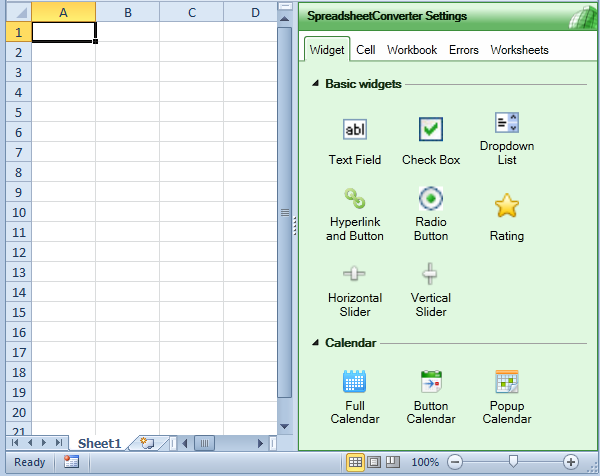
Selecting a widget

Once you've inserted a widget into a cell, the Settings panel makes it much faster and a lot easier to change its settings using the Cell tab.

The Settings panel allows you to move around the worksheet quickly and adjust all the widgets to new requirements.
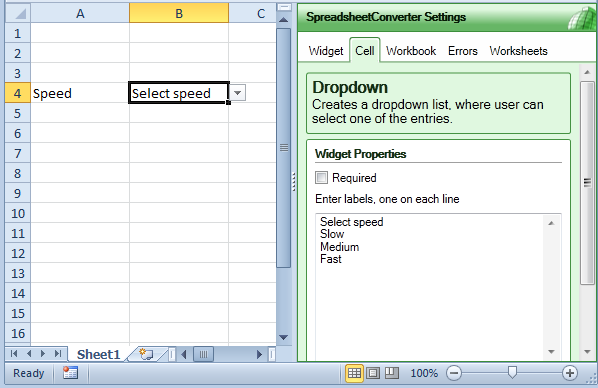
Widget settings

Document settings

With SpreadsheetConverter, you can easily change the settings for how you want the converted web page to appear, i.e. with tabs, as a wizard, as panels etc. You can also specify how input cells are identified, what labels to use for buttons and many other things.

Previously, you could only change the settings related to the current workbook from inside the conversion wizard. With the new Workbook tab on the Settings panel, you can change any workbook setting at any time, without starting a conversion.
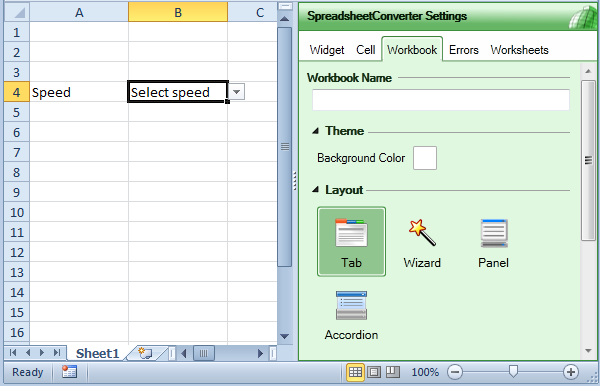
Workbook settings

Often, a workbook contains one or more "behind-the-scenes" worksheets that include supporting data. When you convert your main sheet to a web page, you need to include the supporting data for your formulas to work, but you may not want the background worksheet to be visible to the user. The new Worksheets tab in the Settings panel allows you to specify what worksheets to hide in the converted web page.
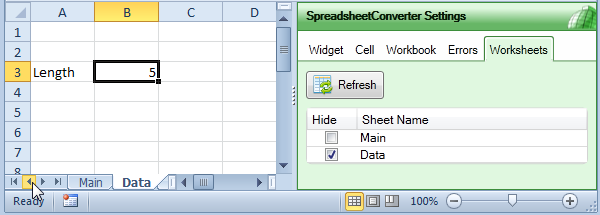
Worksheet settings

Errors tab

All conversion generate one or more messages from the converter. Most of these are just informative. The results of the last conversion are always just a click away on the Errors tab.
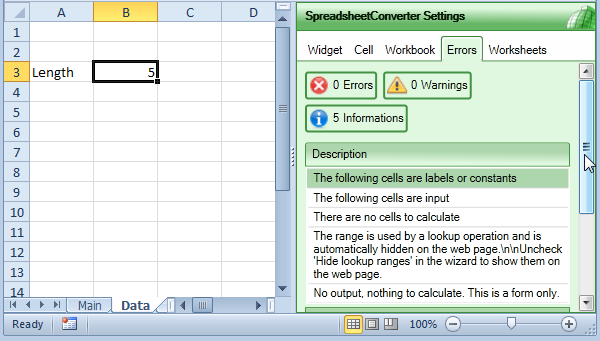
Errors tab

Other changes

Apart from the new powerful user interface, we are making numerous improvements to the product in this new version.

  • More than one flavor of the product can be installed side-by-side in the same environment, e.g. to generate web pages either for Flash or for iPhone/Android.
  • Version 6 automatically updates itself when new versions are relased.
  • A completely new installer technology makes it possible for ordinary users to install and update the product without requiring administrative permissions.
  • SpreadsheetConverter now works with 64-bit editions of Excel.
  • The conversion process is much faster and more reliable.

Version 6 system requirements

  • SpreadsheetConverter version 6 supports Excel 2003, Excel 2007 and Excel 2010 in 32- or 64-bit mode.
  • Excel 2003 users should install the Microsoft Office Compability Pack.
  • Version 6 requires the .NET 4.0 Client Profile, a free update that is installed using Windows Update.
  • You need Windows XP with Service Pack 3, or any later version of Windows in 32- or 64-bit mode.
  • For the first installation, you must be logged on as a Windows administrator. Subsequent installations and upgrades can be performed also when logged on as an ordinary Windows user.

Upgrading to version 6

If you have an existing license for SpreadsheetConverter, you need to upgrade the license key for version 6 using the upgrade page. If you have a version 5 license purchased on or after summer 1, 2011, you will receive a version 6 license key for free.

Download and test it now!

Version 6 happily co-exists with older versions of SpreadsheetConverter, so you can test the new version without removing the old.

Try the program for free in your own PC. Download and install this plug-in for Excel in Windows.

Printer-friendly
